Updating X3
How to update your website to latest X3 version.
Updating X3 from control panel * Recommended
Since version X3.23.0, you can update X3 directly from your control panel.
- Login to your X3 control panel.
- Navigate to Tools › X3 Updates.
- If there is a new X3 version available, you will see a note and a button to "update now!".
- On the X3 update page, follow on-screen instructions.
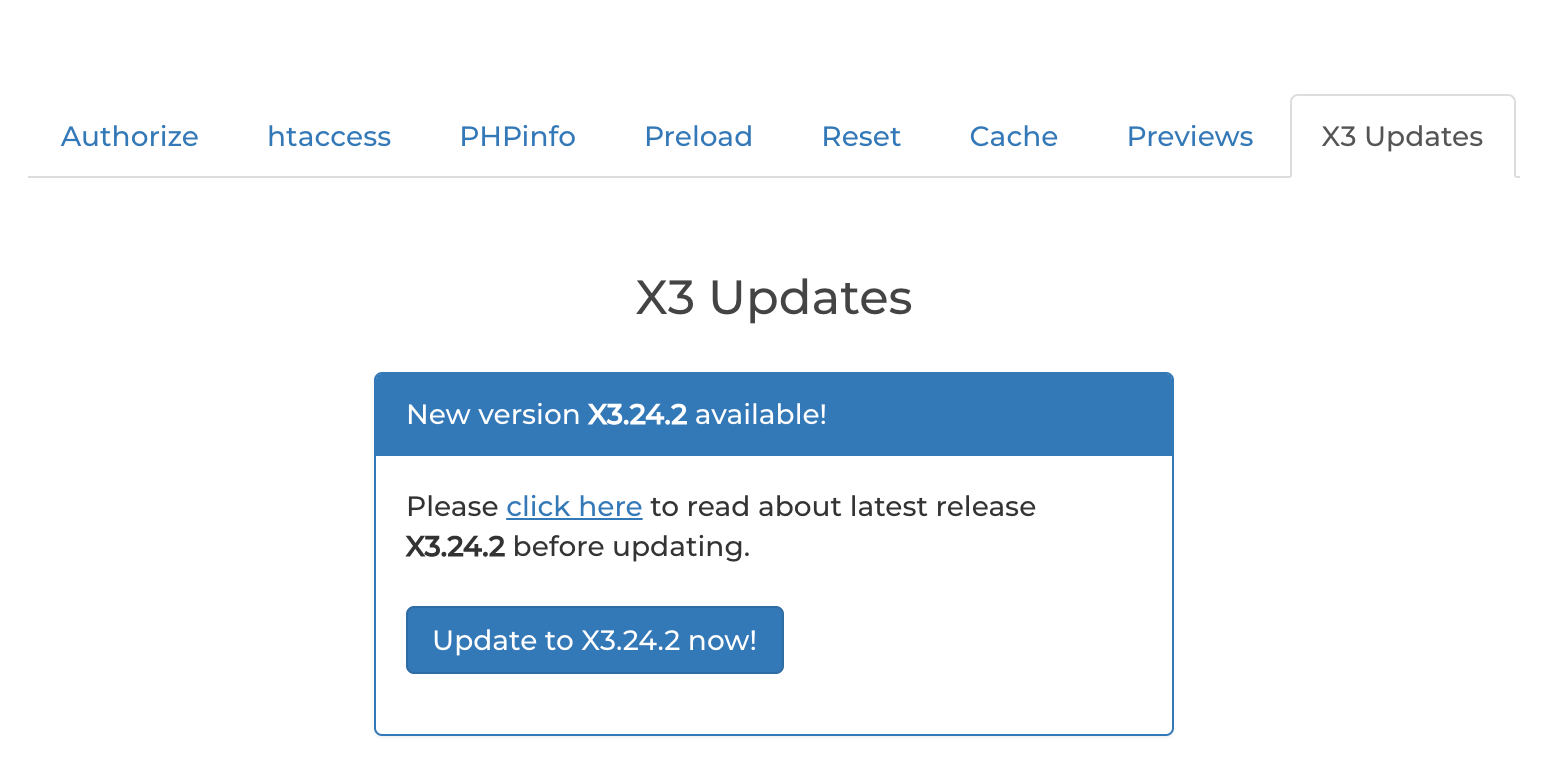
X3 updater script
The X3 control panel uses the x3_updater.php script to update your X3 website. The updater script requires that your server has PHP Curl and ZipArchive extensions to be able to download and unzip X3 updates from a remote server.
Update X3 manually by FTP * Optional
If you can't or don't want to use the X3 updater script, you can also update X3 manually by FTP.
- Download X3.latest.update.zip.
- Unzip the X3 update file on your computer.
- By FTP, upload the contents of the update into your X3 directory, effectively overwriting the X3 application files and folders.
FAQ
Do I keep my pages, galleries and settings after updating?
Yes. The updates only overwrite X3 app files. Your /content/ and /config/ folders will remain intact.